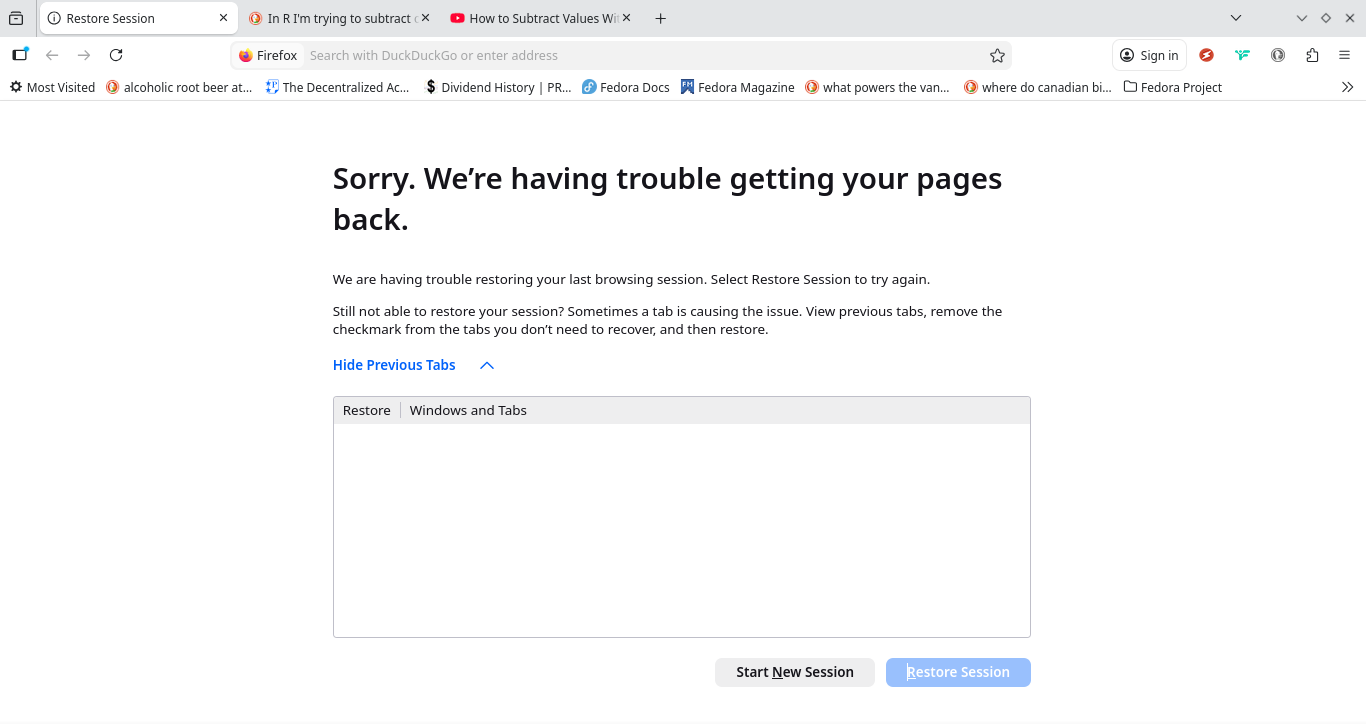
Generally I believe this post is asking of Frank: there was a time when seeking help that you closed one my Firefox windows and suggested the tabs were still accessible; prove to me that my last 50 tabs are still accessible when I lost them this morning and instead am left with the following, a result of why I didn’t let you close the rest of my windows? Can you tell me where the tabs are given this screenshot?
2 Likes
This specific occurance is unrelated to our previous technical support session, but the solution may end up using the same action flow chart. Try opening the hamburger menu → History → Recently closed tabs → Reopen all tabs. There is also a “Restore previous session” option that may resolve your issue.
First off to answer the question given: Ctrl + Shift + H will show you the most recent links that were opened by your browser. This depends on how long it has been since you lost the tabs, depending on your history settings it might delete your history after a certain amount of time, so be sure to save the links if you need to return to them after closing the browser.
Take what I’m about to say next as opinionated constructive feedback, my goal here is to help.
The root problem here isn’t that you lost 50 tabs this time. Its that, like far too many Internet users in 2026 who are used to having large amounts of memory in their computer, you had 50 tabs open at the same time on the same browser. Each tab can be a GB of RAM at a time while opened in the background, eating RAM whether you are viewing it or not. As you discovered, after a certain amount of time if the browser crashes (presumably a memory dump from too many tabs open), you not only have the browser crash but often they won’t be saved to your browser history depending on how recently you opened the tab compared to the memory crash.
I try to only have at most 4 tabs open at a time, depending on if I am using 1 for music and the rest for research or productivity. even if you have 6 monitors and had 2 windows open per monitor, you can only realistically be paying attention to 4 or so at a time before the rest are just wasting RAM in the background.
One tab acts as a way to store groups of links so you can reopen groups of them depending on the context. in the event you find yourself with more than 4, you should strongly consider backing your links.
On a related topic, should you find one tab or bookmarks running out of space to where you struggle finding links you absolutely need to find among thousands of links you saved at some point, you want to consider saving them either exporting them as bookmark HTML files seperated by topics, or do what I do and save them in .md files using Logseq. Logseq is essentially a note taking app, but with a lot of benefits that make it easy to search and find the notes I make later as well as link past note pages I made like a personal wiki. I make note of what the URL is and why I need to find it later.
1 Like
Thanks, Violet:
This was very useful! It’s not actually from the browser crashing or using excessive RAM, but being up in KDE Cinnamon from clicking a browser window when more than one is open hoping to bring it up and instead having the entire window with all of it’s open tabs close merely because of said action.
FYI: an open tab from memory when opening the browser doesn’t only uses bytes of kilobytes of data for the text-placement of the tab until you click on and open the tab and the website; then it can use a gigabyte of RAM but not until the user opens such tab. Hope that helps.
1 Like
Okay, so is your issue resolved by either of the suggested solutions provided by me or the keyboard shortcut provided by Violet to open the Library?
Yes, I am good now, Frank. You can now delete this thread, however you could leave it up when the time comes that others need help for the same issue; and I didn’t quite understand your solution: what and where is “the hamburger menu”?
2 Likes
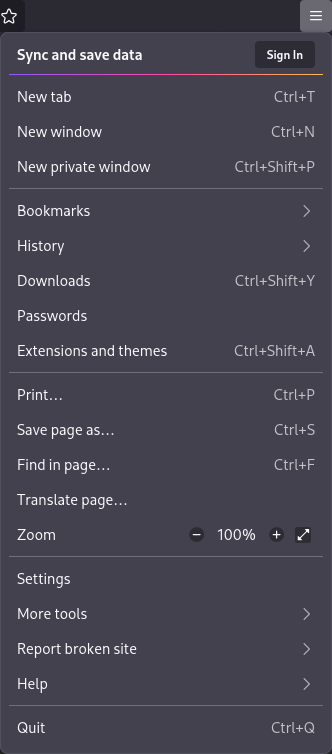
It is a collapsed menu icon representing three horizontal lines (☰) located within the right of the toolbar by default, which expands Firefox’s application menu after selection for further navigation:
Sorry. let me correct that the desktop is not cinnamon, but Plasma
2 Likes
This topic was automatically closed 24 hours after the last reply. New replies are no longer allowed.